
Inputs triggering
Some vehicle GPS-trackers are equipped with inputs. To inputs you can connect different tools such as car track opening or SOS button pressing. If you set up this rule, the system will inform you about inputs triggering by SMS or email.
How to create the rule
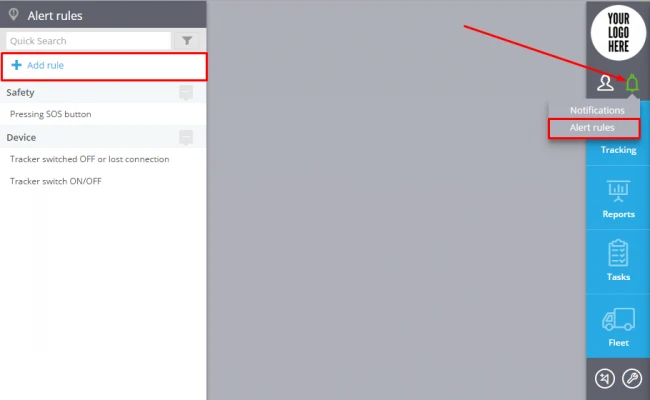
To add a new rule click "Alert Rules"( in the top right corner)->Add rule (in the top left corner).
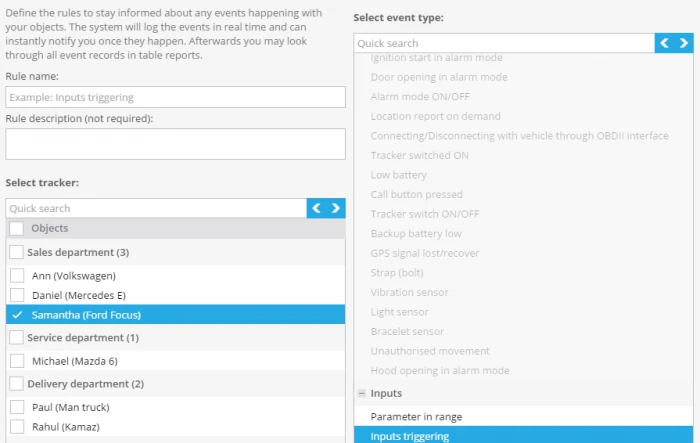
In the window enter the rule name, rule description, select tracker and event type "Inputs triggering".
Click "Next"
Rule options
After adding a new rule you should set its options.
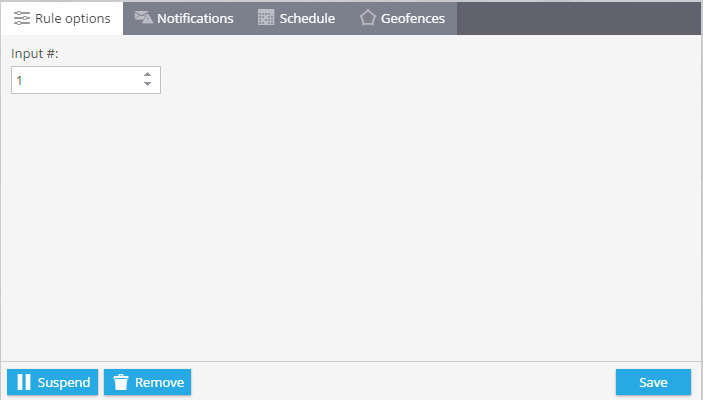
1. Rule options
In this field you are to choose an input which you want to control.
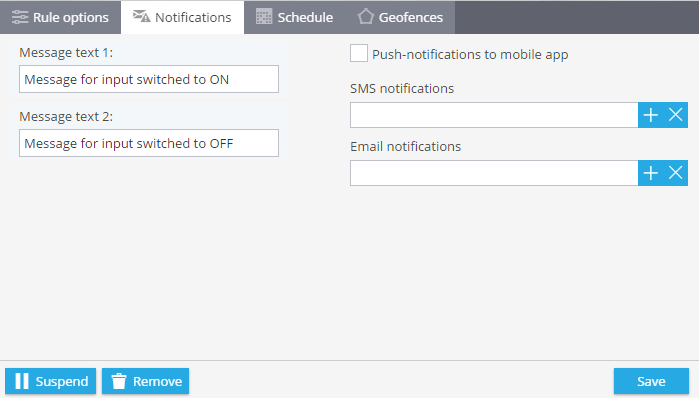
2. Notifications
Here you should type text of the messages you want to get and choose notification type.
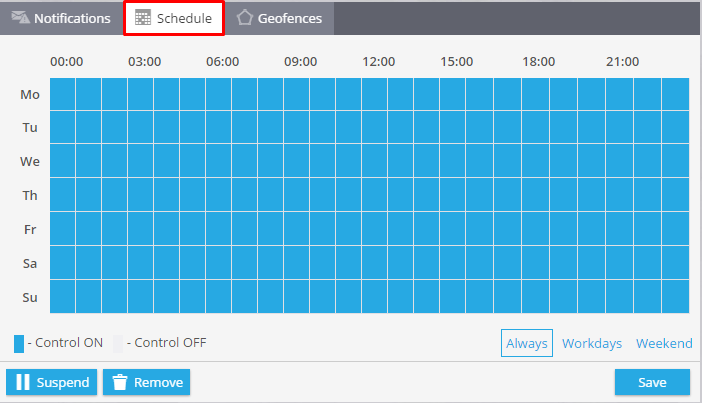
3. Schedule
In this block you are to set days and time when you want to control your objects.
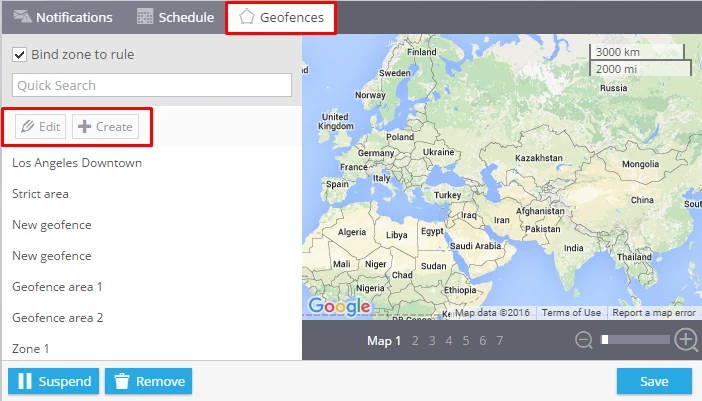
4. Geofences
Choose a geofence where you want to control your trackers. You can select it from the list and edit it or create a new one.
How to get the list of events
There are 2 ways of getting the list of events for one tracker or a group of objects.
1. In the app "Monitoring"-> Events history.
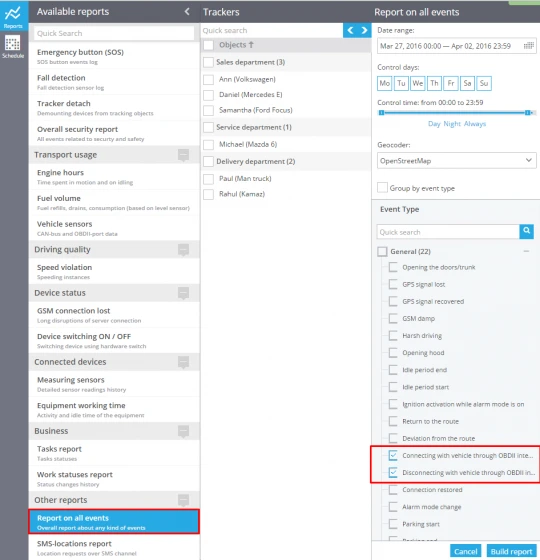
2. Using the generated reports "Connection with vehicle through OBDII interface" or "Disconnection with vehicle through OBDII interface".